How to Transfer Files Between Phones Without Internet (Wi-Fi Direct Guide 2026)
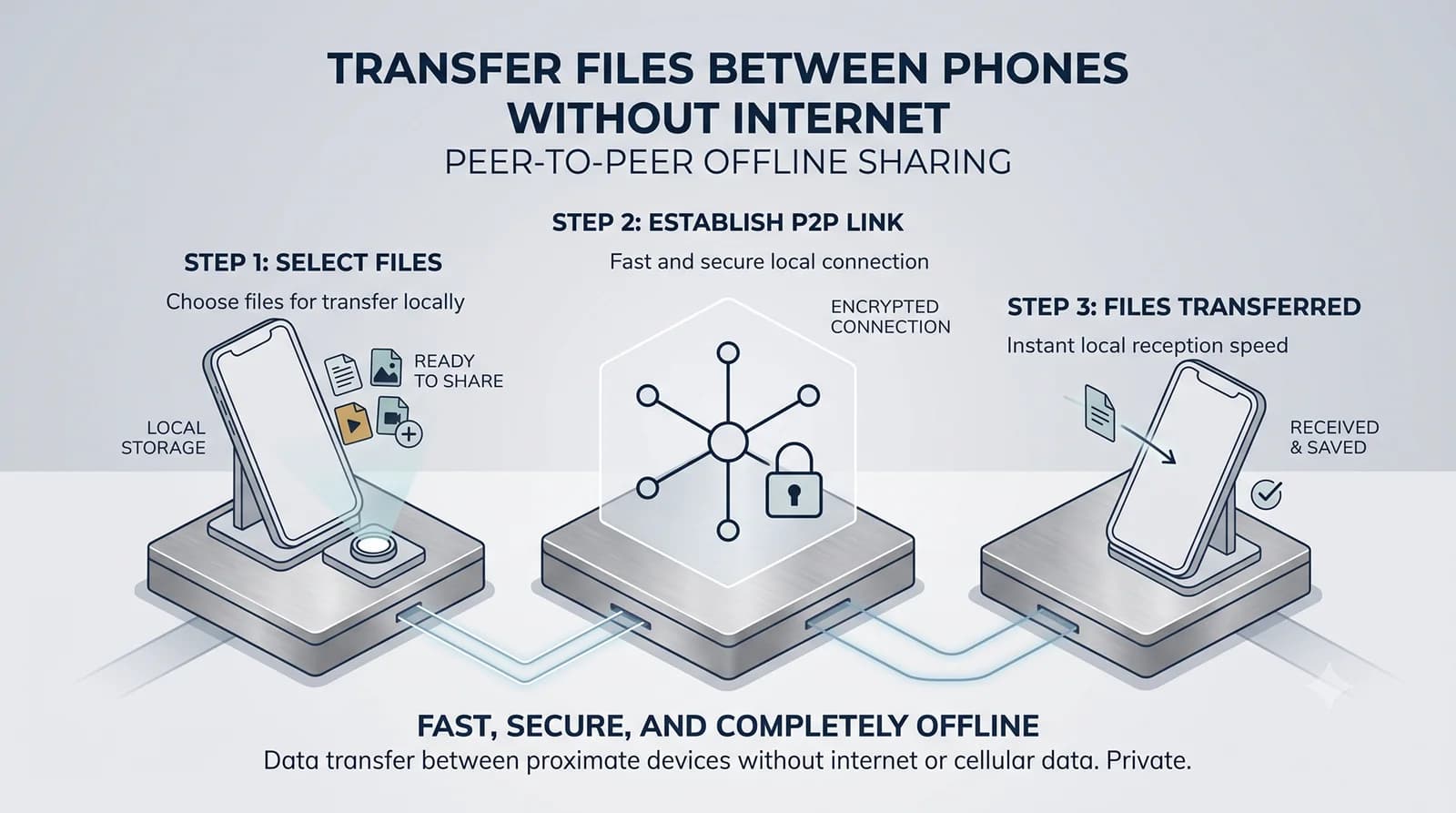
You can transfer files between Android phones without any internet connection using Wi-Fi Direct, local hotspots, or Bluetooth. The fastest method is Wi-Fi Direct, which creates a direct peer-to-peer connection between two devices over your local Wi-Fi hardware — achieving speeds of 20-250 Mbps without touching any cloud server or consuming mobile data.
In this guide, we explain every method for transferring files without internet on Android — how each technology works, which apps to use, and the critical privacy implications that most guides ignore. Whether you are sharing photos at a wedding, sending large video files to a friend, or working in an area with no cellular coverage, this guide covers every scenario.
Why Transfer Files Without the Internet?
Cloud-based file sharing (Google Drive, WhatsApp, email) has become the default — but it comes with hidden costs that most people never think about:
- Mobile data consumption: Sending a 2GB video over WhatsApp uploads it to a server, then the recipient downloads it. That is 4GB of data consumed between both devices.
- File compression and quality loss: WhatsApp, Telegram, and most messaging apps aggressively compress images and videos before sending. Your 48MP photo arrives as a 2MP thumbnail.
- Privacy: Every file you send through a cloud service passes through (and is often stored on) third-party servers. Even with end-to-end encryption, the metadata — who sent what, when, and to whom — is logged.
- Speed: Your local Wi-Fi hardware can transfer data at 250+ Mbps. Your mobile data connection tops out at 30-50 Mbps in most areas. For large files, local transfer is 5-10x faster.
- No coverage situations: Flights, remote locations, basements, events with overloaded cell towers — there are countless situations where you simply have no internet access.
Local file transfer solves all of these problems. Your files move directly from one device to another — at full quality, at maximum speed, with zero cloud involvement.
Method 1: Wi-Fi Direct (Fastest, No Router Needed)
How Wi-Fi Direct Works
Wi-Fi Direct is a peer-to-peer wireless standard that lets two devices connect directly to each other without needing a router or access point. Here is what happens under the hood:
- Discovery: Both devices broadcast their capabilities using Wi-Fi probe requests, similar to how your phone finds nearby Wi-Fi networks.
- Group negotiation: The devices automatically negotiate which one will act as the “Group Owner” (essentially a temporary access point) and which will act as the client.
- Secure connection: The two devices establish a WPA2/WPA3-encrypted connection—the same encryption standard your home Wi-Fi network uses.
- Data transfer: The devices transmit files over this direct, encrypted, peer-to-peer Wi-Fi link at speeds of 20-250 Mbps, depending on the Wi-Fi hardware in each device.
No internet is involved at any point. The connection is purely between the two devices using their built-in Wi-Fi chips. No router, cloud server and No data charges.
How to Use Wi-Fi Direct on Android
- Go to Settings → Wi-Fi → Wi-Fi Direct (or “Wi-Fi Preferences” on some devices).
- Both devices will appear in the discovery list.
- Tap to connect and accept the pairing request on the other device.
- Open your file manager, select the files you want to send, tap “Share,” and choose “Wi-Fi Direct.”
Limitation: Android’s built-in Wi-Fi Direct sharing is functional but basic — it lacks progress indicators, multi-file queuing, and auto-reconnection. This is why most people use a dedicated app on top of Wi-Fi Direct (see the comparison below).
Method 2: Local Network Transfer (Both Devices on Same Wi-Fi)
If both devices are connected to the same Wi-Fi network (home router, office network, or even a mobile hotspot), you can transfer files over the local network without any data leaving the router. The files travel directly between devices on the LAN — the router simply acts as a bridge, not a gateway to the internet.
This method is slightly easier to set up than Wi-Fi Direct and works across different operating systems (Android to iPhone, Android to PC, etc.) — but it does require an existing Wi-Fi network.
Method 3: Bluetooth (Slow but Universal)
Bluetooth file transfer works on virtually every phone ever made, requires no Wi-Fi, and is simple to use. However, Bluetooth 5.0 maxes out at about 2-3 Mbps — making it impractical for anything larger than a few photos or small documents.
When to use Bluetooth: Only when transferring very small files (under 50MB) and no Wi-Fi option is available. For anything larger, Wi-Fi Direct is 50-100x faster.
Method 4: USB OTG Cable (Physical, Maximum Speed)
Using a USB-C to USB-C cable (or a USB OTG adapter), you can physically connect two Android phones and transfer files at USB 3.0 speeds (up to 5 Gbps). This is the fastest possible method and requires no wireless connection of any kind.
When to use USB OTG: When transferring very large amounts of data (20GB+) and you have a cable handy. Not practical for everyday quick shares.
Best Apps for Offline File Transfer in 2026
While Android provides basic Wi-Fi Direct sharing natively, dedicated apps provide dramatically better experiences — multi-file transfers, progress tracking, automatic discovery, and cross-platform support. Here is how the major options compare:
| App | Technology | Cross-Platform | Privacy | Open Source | Ads |
| Quick Share (Google) | Bluetooth + Wi-Fi Direct | Android, Windows, ChromeOS | Good (Google-managed) | No | No |
| LocalSend | Local Network (LAN) | All major platforms | Excellent (E2EE, no cloud) | Yes | No |
| SHAREit | Wi-Fi Direct | Android, iOS, Windows, Mac | Poor (data collection concerns) | No | Heavy |
| Files by Google | Bluetooth + Wi-Fi | Android only | Good (Google-managed) | No | Minimal |
Quick Share (Google’s Built-In Solution)
Quick Share (formerly Nearby Share) is built into every modern Android device. It uses Bluetooth for discovery and Wi-Fi Direct for high-speed transfer. It is the most convenient option for Android-to-Android sharing because it requires no app installation — just tap “Share” on any file and select Quick Share.
Pros: No installation needed, encrypted transfers, works without internet. Cons: Limited to Android and Windows; proprietary Google infrastructure; occasional pairing issues between different Android OEM skins.
LocalSend (Best for Privacy)
LocalSend is the gold standard for privacy-focused file transfer in 2026. It is fully open-source, uses TLS encryption, and works across every major platform (Android, iOS, Windows, macOS, Linux). Files transfer over your local network — no internet, no cloud, no account required.
Pros: Open source, E2E encrypted, truly cross-platform, no ads, no tracking. Cons: Requires both devices to be on the same Wi-Fi network (or one device creating a hotspot).
SHAREit (Avoid for Privacy)
SHAREit was once the most popular file-sharing app globally. However, in 2026, it is widely recommended against by privacy-conscious users. The app is ad-heavy, has been flagged for data collection practices, and lacks the transparent encryption that open-source alternatives provide. If privacy matters to you — and if you are reading this article, it probably does — there are better options.
The Privacy Gap That Still Exists
Even with the current options, there is a gap in the market. Quick Share is convenient but proprietary. LocalSend is private but requires a shared network. SHAREit is a privacy liability. None of them combine the convenience of Wi-Fi Direct’s “no shared network needed” architecture with the privacy standards of a zero-cloud, zero-account, zero-tracking application.
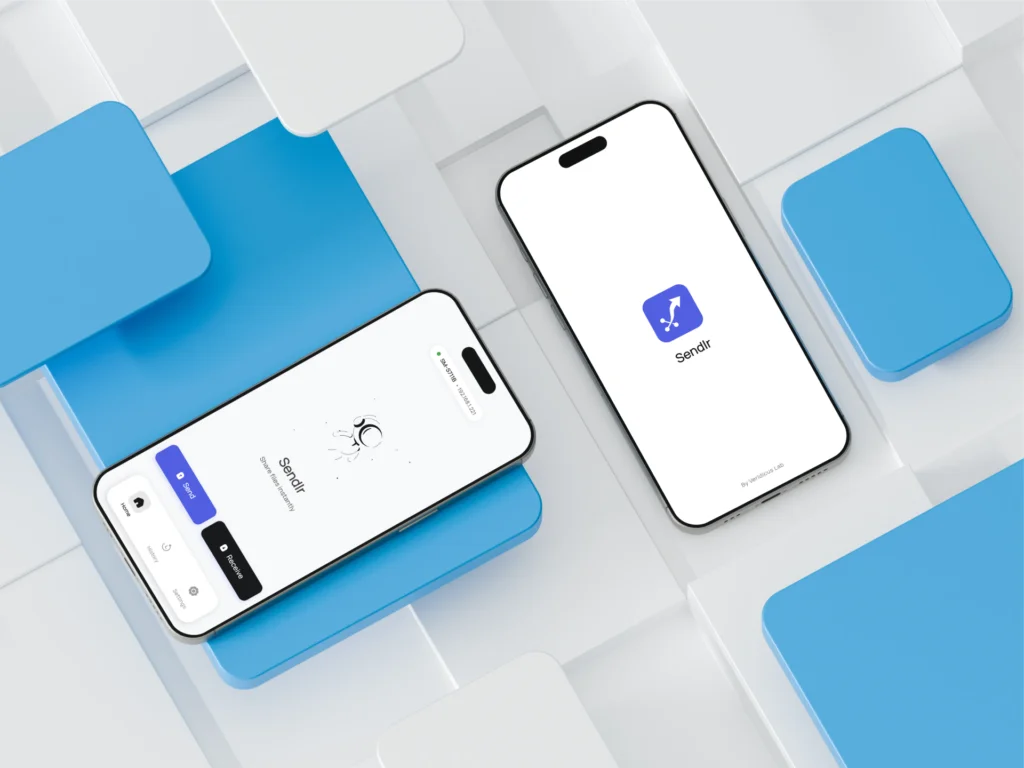
This is exactly the problem we are solving with Sendlr — a local Wi-Fi peer-to-peer file transfer app currently in development at Veridicus Lab. Sendlr is designed to transfer files directly over your local Wi-Fi hardware, without any cloud server, any user account, or any data collection. Direct device-to-device transfer. Maximum speed. Complete privacy. No compromises.
Follow our products page for updates on Sendlr’s release.
Step-by-Step: Transfer Files Without Internet Right Now
Here is the quickest way to transfer files between two Android phones right now, without any internet:
Using Quick Share (No App Installation)
- Open the file you want to send (photo, video, document).
- Tap the Share button.
- Select Quick Share (or “Nearby Share” on older devices).
- On the receiving phone, ensure Quick Share is enabled in Quick Settings.
- The sending phone will discover the nearby device — tap to send.
- Accept the transfer on the receiving device.
The entire process takes about 10 seconds to set up, and large files transfer at Wi-Fi Direct speeds (typically 50-150 Mbps in practice).
Speed Comparison: Local Transfer vs. Cloud
| Method | Speed | Data Usage | Quality Loss | Privacy |
| WhatsApp / Telegram | 10-50 Mbps | 2x file size (upload + download) | Yes (heavy compression) | Low (server-stored) |
| Google Drive / Email | 10-50 Mbps | 2x file size | No | Medium (cloud-stored) |
| Wi-Fi Direct | 20-250 Mbps | Zero | No | High (device-to-device) |
| Local Network | 50-300 Mbps | Zero | No | High (LAN-only) |
| Bluetooth 5.0 | 2-3 Mbps | Zero | No | High |
| USB OTG Cable | Up to 5 Gbps | Zero | No | Maximum |
The Bottom Line
Transferring files without internet is not just a fallback for areas without coverage — it is often the better method, period. Local transfer is faster, preserves full file quality, consumes zero data, and keeps your files completely private.
For quick, one-off transfers between Android devices, Quick Share is the most convenient (already built-in). For privacy-conscious users who need cross-platform support, LocalSend is the current best option. And for those who want the simplest possible experience with zero cloud involvement, keep an eye on Sendlr — our upcoming local Wi-Fi P2P transfer app designed from the ground up with offline-first architecture and absolute privacy.
Interested in Best Offline Authenticator App that don’t sync to the cloud
Enjoyed this technical dispatch?
Share it with fellow engineers or connect with us for questions.
Nirdhum
Veridicus Lab is an independent software lab creating privacy-first digital tools, developer utilities, and offline-first mobile apps.